Edit Table Of Contents Templates Online for Free
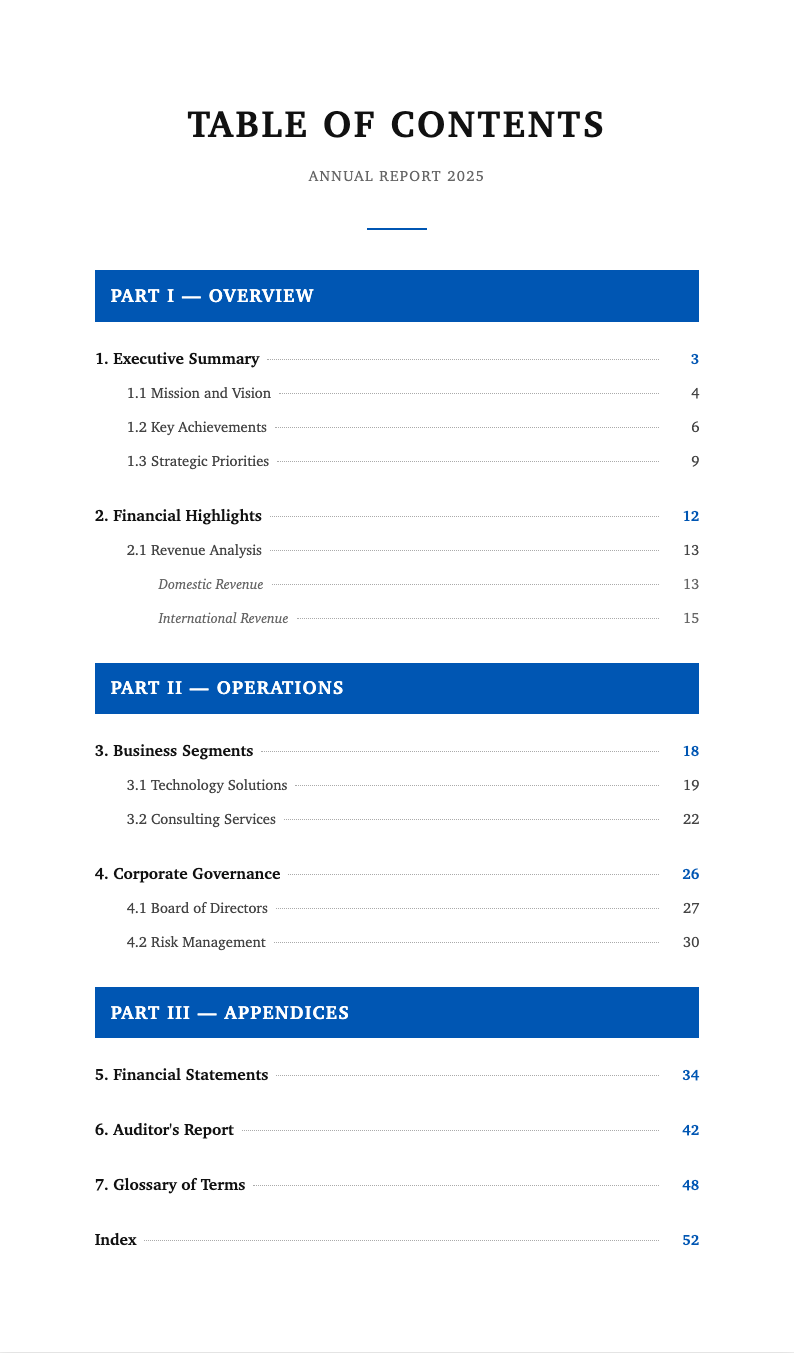
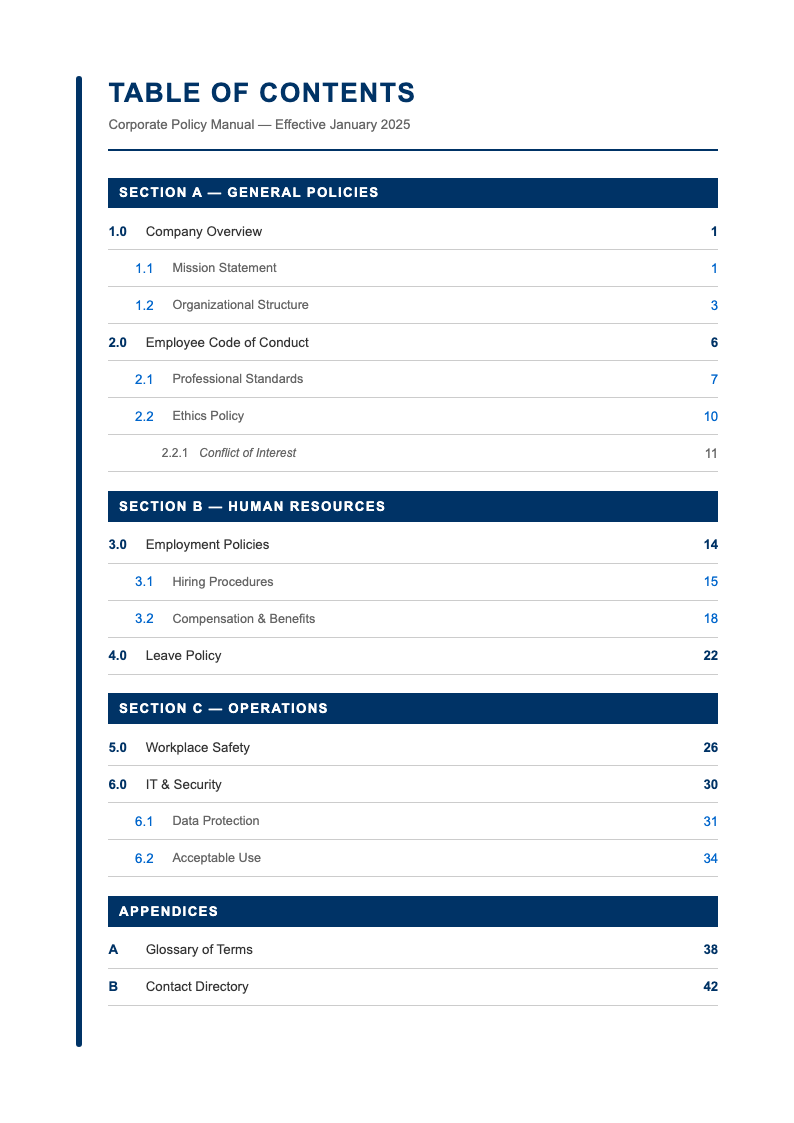
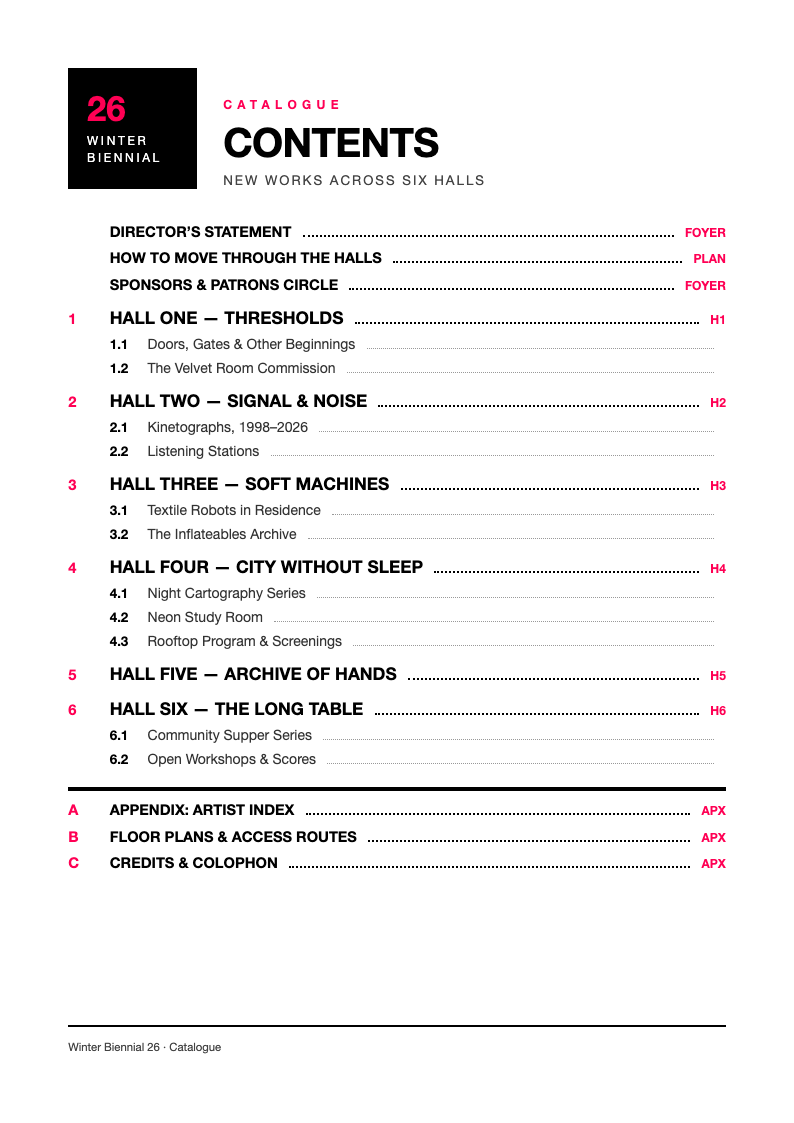
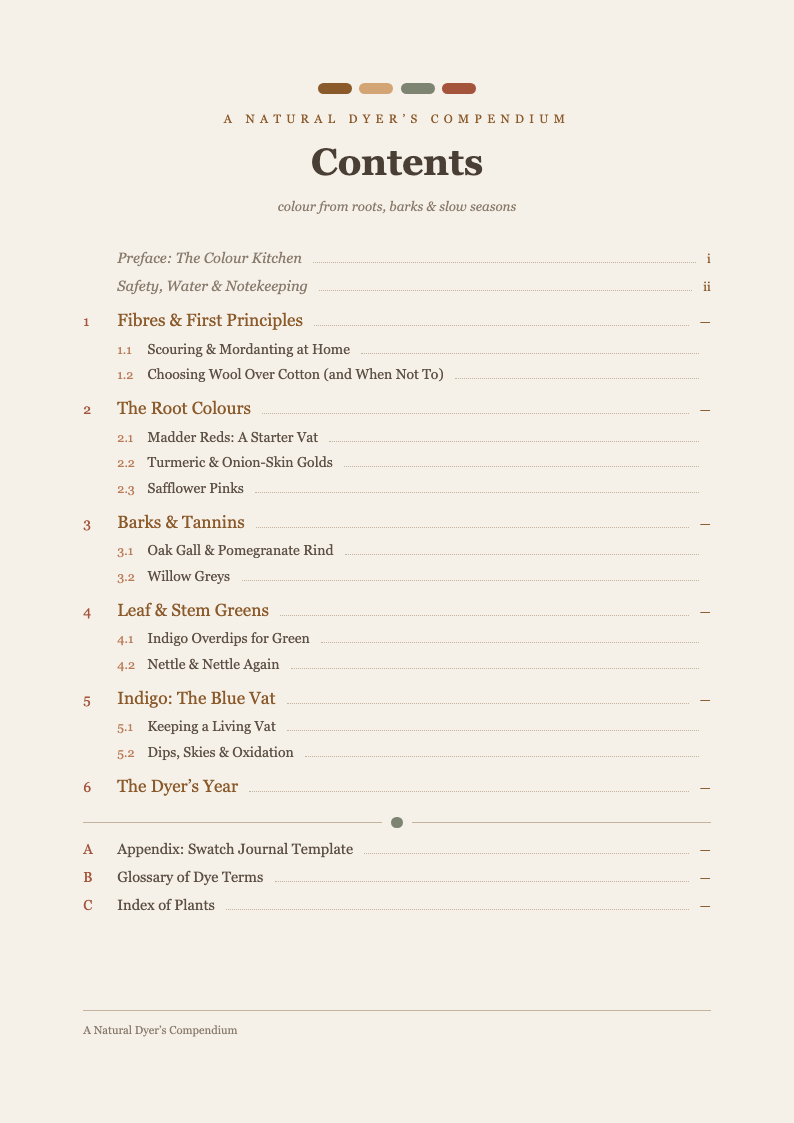
Give your documents a professional structure with AI Formatter's Table of Contents templates. Perfect for students, authors, and business professionals.
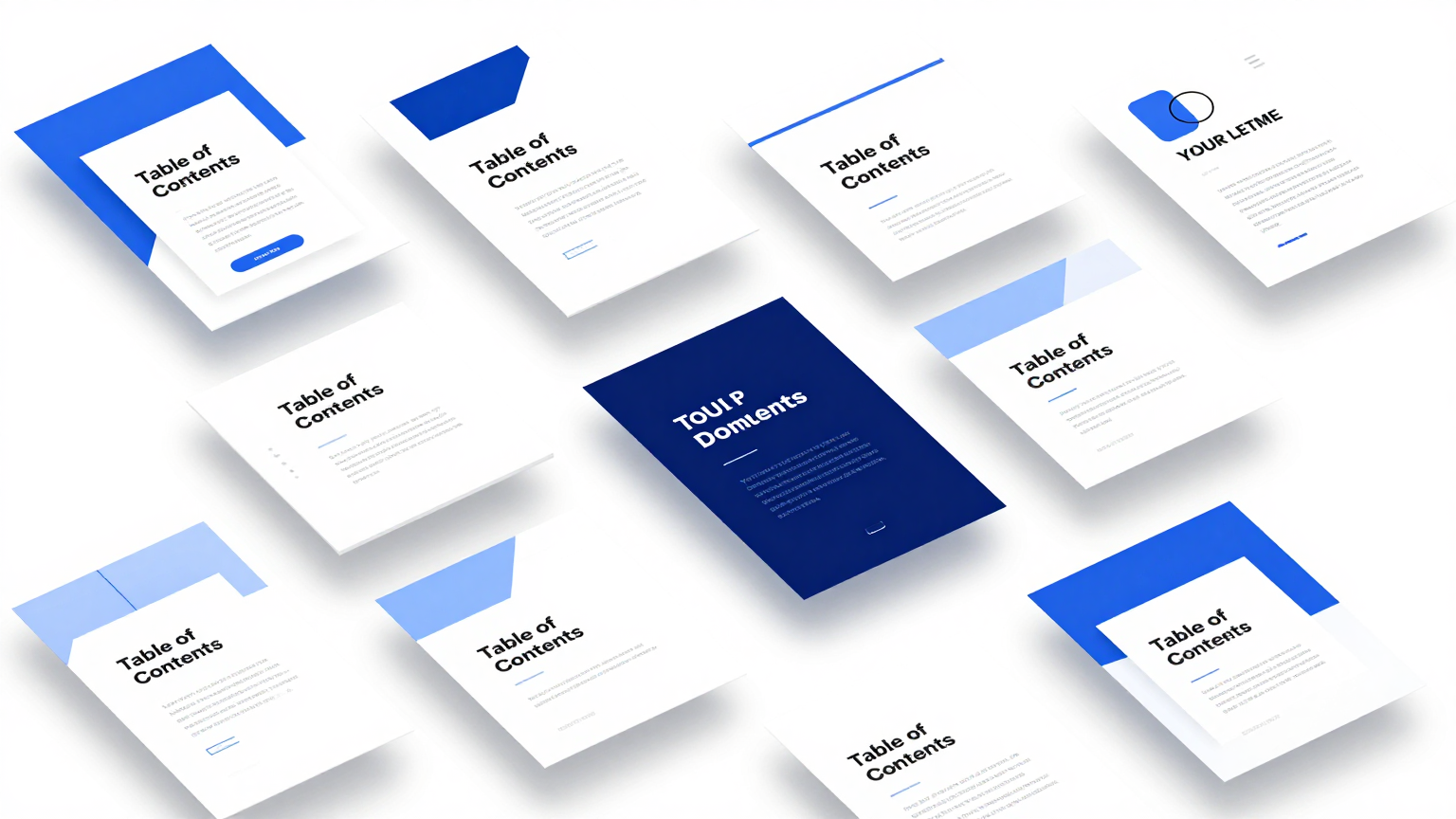
Showing 20 of 33 templates
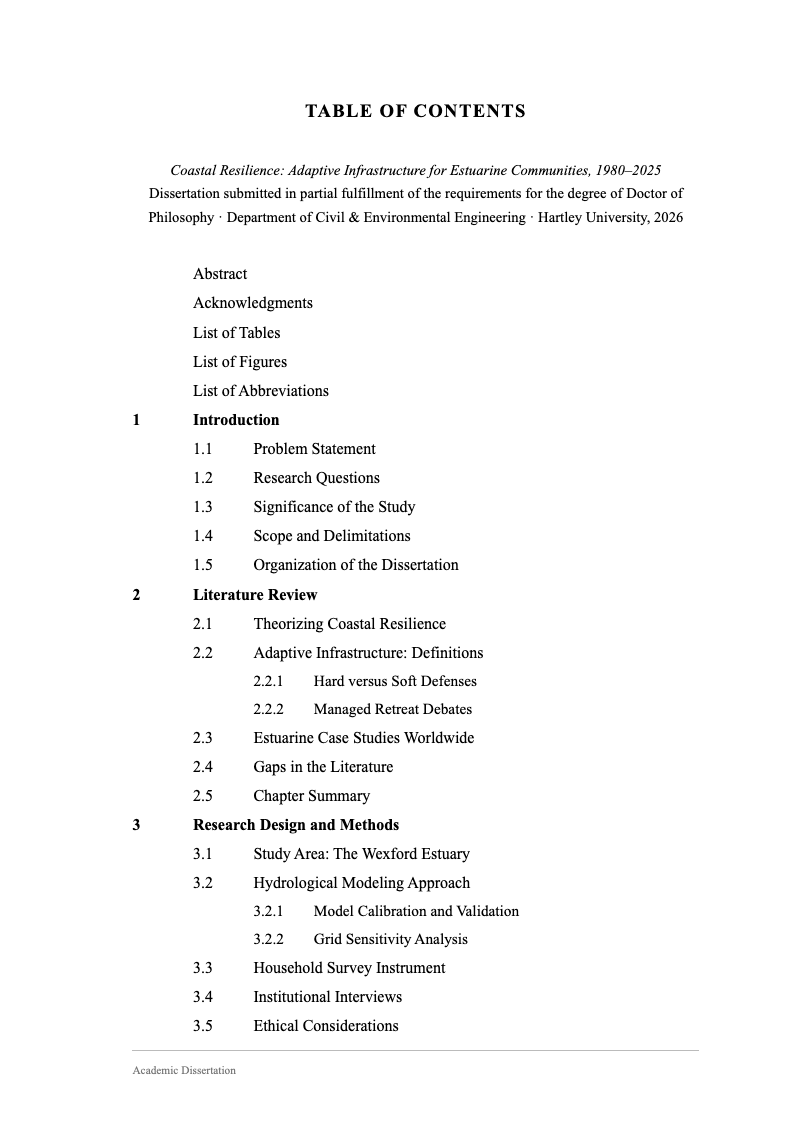
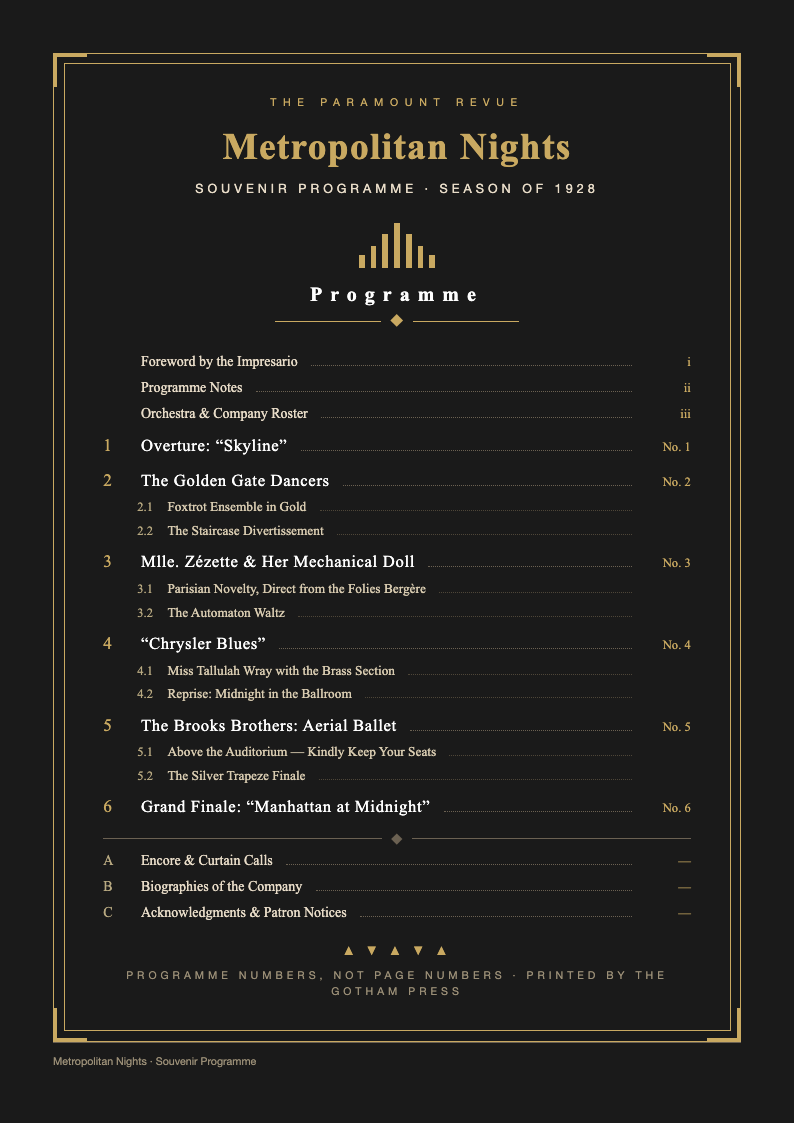
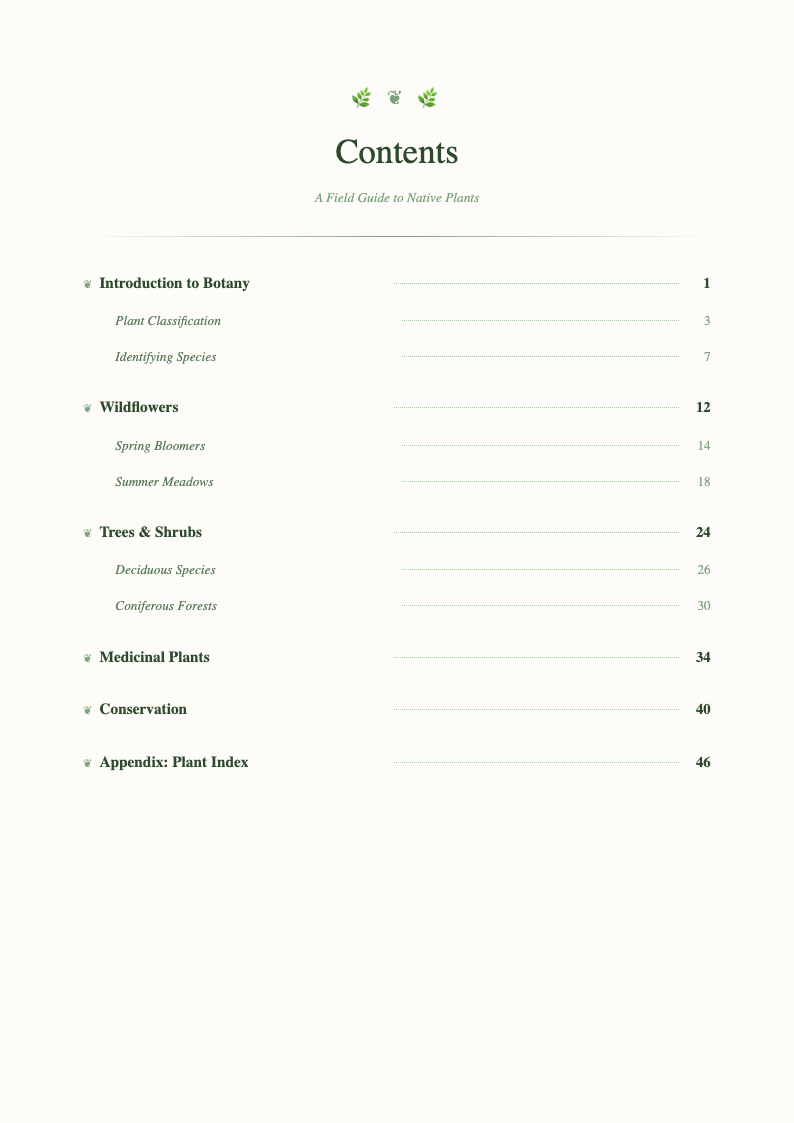
Frequently Asked Questions About Our Templates
Tips for using table of contents templates.
- Are these Table of Contents templates free?
- Yes, all our Table of Contents templates are completely free to download and use. We provide these resources to help you enhance the organization and navigation of your documents without any cost. You can access and utilize them for various projects, including academic papers, business reports, and creative manuscripts, ensuring a professional look every time.
- How do I update the page numbers?
- If you are using a template with Word's automatic Table of Contents feature, simply right-click anywhere on the table and select 'Update Field', then choose 'Update page numbers only' or 'Update entire table'. For manual templates, you will need to manually type in the correct page numbers corresponding to your document's sections, ensuring accuracy before finalizing your work.
- Can I change the font and style?
- Absolutely, our Table of Contents templates are fully editable, allowing you to customize the font, size, color, and style to match your document's overall design theme. You can easily modify the styles in the 'Home' tab of Microsoft Word to ensure consistency with your headings and body text, creating a cohesive and polished final document.
- Do these work for long documents?
- Yes, our Table of Contents templates are specifically designed to handle documents of any length, from short business proposals to extensive doctoral dissertations. They support multiple levels of headings (Heading 1, Heading 2, Heading 3, etc.), making it easy to organize complex information hierarchically and helping readers navigate through hundreds of pages with ease.
- Are they compatible with Google Docs?
- Yes, you can upload our Microsoft Word (.docx) templates directly to Google Docs. While Google Docs has its own native Table of Contents feature, our templates will generally retain their formatting. You may need to make minor adjustments, but the overall structure and design will be preserved, allowing you to collaborate and edit in the cloud.
- How do I add new levels of headings to the Table of Contents?
- To add new levels, such as Heading 3 or Heading 4, you first need to apply the corresponding style to the text in your document. Then, update the Table of Contents by right-clicking it and selecting 'Update Field'. If the new levels don't appear, you may need to adjust the 'Custom Table of Contents' settings under the 'References' tab to include more levels.
- Can I create a clickable Table of Contents with these templates?
- Yes, if you use the automatic Table of Contents feature within our templates, the entries will automatically be hyperlinked to the corresponding sections in your document. This is extremely useful for digital documents and PDFs, allowing readers to jump directly to the section they are interested in by simply holding 'Ctrl' and clicking the link.
- How can I remove the dots (leaders) between the text and page number?
- To remove or change the leader lines (the dots), go to the 'References' tab, click on 'Table of Contents', and select 'Custom Table of Contents'. In the dialog box that appears, you can change the 'Tab leader' option to 'None' or choose a different style like dashes or a solid line, depending on your preference.
- What is the difference between an automatic and a manual Table of Contents?
- An automatic Table of Contents is generated dynamically based on the heading styles applied in your document and can be updated with a click. A manual Table of Contents is essentially a static list where you must type the headings and page numbers yourself. Automatic tables save time and reduce errors, while manual tables offer total control over formatting but require more maintenance.
- Can I use these templates for e-books?
- Yes, our templates are excellent for e-books. Since e-books often rely on navigational links, using our automatic Table of Contents templates ensures that your readers can easily navigate your content on e-readers and tablets. Just make sure to verify the hyperlinking when converting your Word document to an e-book format like EPUB or PDF.
- How do I format the title of the Table of Contents?
- You can format the title (e.g., 'Contents', 'Table Of Contents') just like any other text in your document. You can bold it, center it, change the font size, or apply a specific heading style. However, avoid applying a heading style that is included in the Table of Contents generation itself (like Heading 1) to prevent the title from appearing inside the list.
- How do I fix page number alignment issues?
- Page number alignment issues often arise from incorrect tab settings. In an automatic Table of Contents, ensure the 'Right align page numbers' box is checked in the settings. For manual tables, use the ruler to set a right-aligned tab stop at the margin where you want the page numbers to sit, ensuring they line up perfectly vertically.
- Can I have multiple Tables of Contents in one document?
- Yes, it is possible to have multiple Table of Contents sections, such as a brief summary TOC and a detailed one, or separate TOCs for different sections. This requires using bookmarks and field codes to define the scope of each table. While more advanced, our templates can serve as a starting point for setting up these complex document structures.
- How do I exclude certain headings from the Table of Contents?
- To exclude a heading, simply apply a style that is not included in the Table of Contents settings (e.g., 'Normal' or a custom style), or modify the TOC settings to uncheck the specific heading level you want to hide. This is useful for excluding things like the 'Dedication' or 'Copyright' page headers if you don't want them listed.
- What are the best practices for Table of Contents design?
- Best practices include keeping the design clean and readable, ensuring accurate page numbers, and limiting the depth to 3 levels (Heading 1-3) to avoid clutter. Use consistent indentation to show hierarchy visually. Our Table of Contents templates are built with these principles in mind, providing you with a professional foundation that you can further refine to suit your specific document's needs.
Organize Your Document
Download a polished Table of Contents template and give your work a professional finish.
Free templates • AI-powered editing • No sign-up required